How to use Budget Pop
You can have your budget ready in five minutes. Here are the steps, with the app’s real screens.

Step 1: Set up your budget
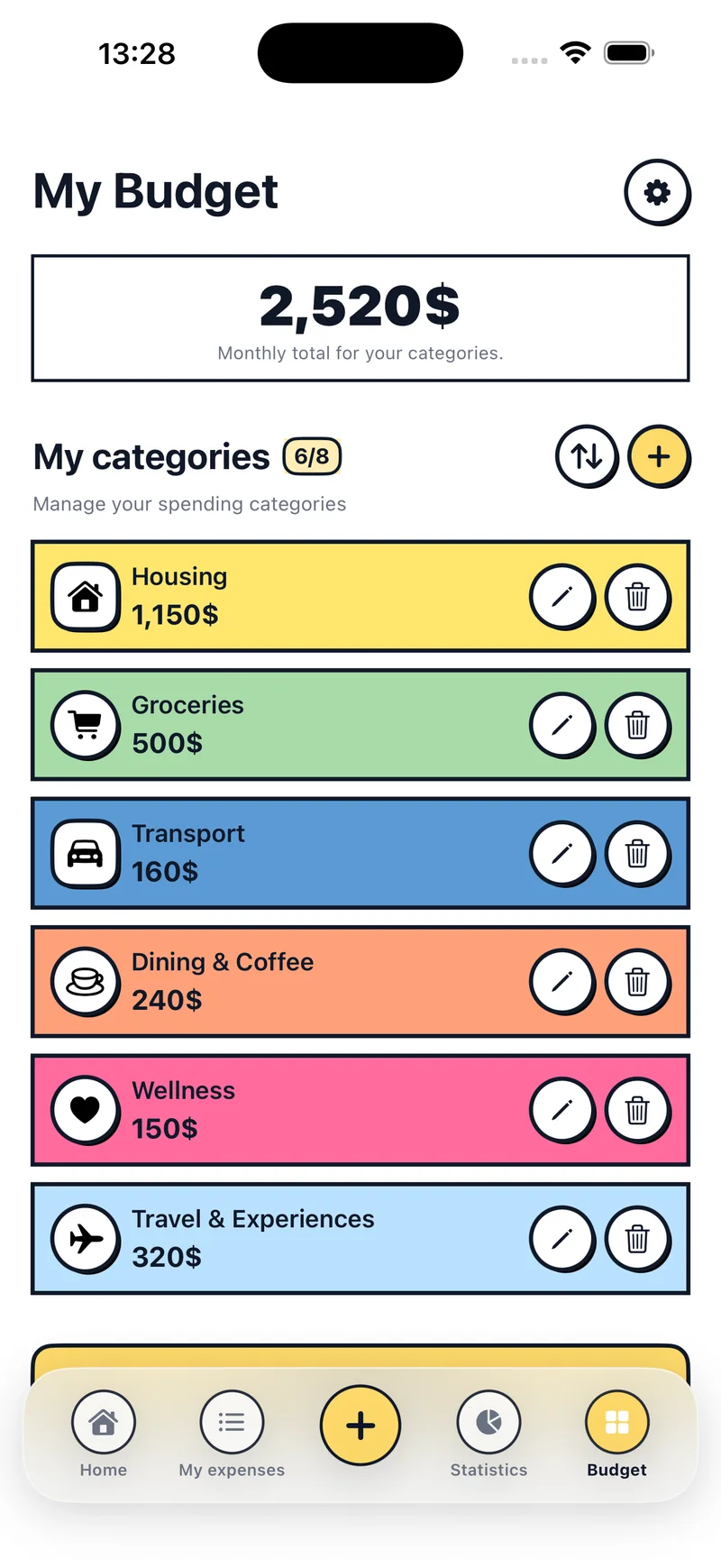
The first time you open the app, you choose your currency, enter what you usually spend in a normal month and select your categories. Then you split the budget between them.
You can change all of this later in the Budget tab. That’s where you create new categories and edit their name, amount, icon, color and shape.
Step 2: Log your first expense
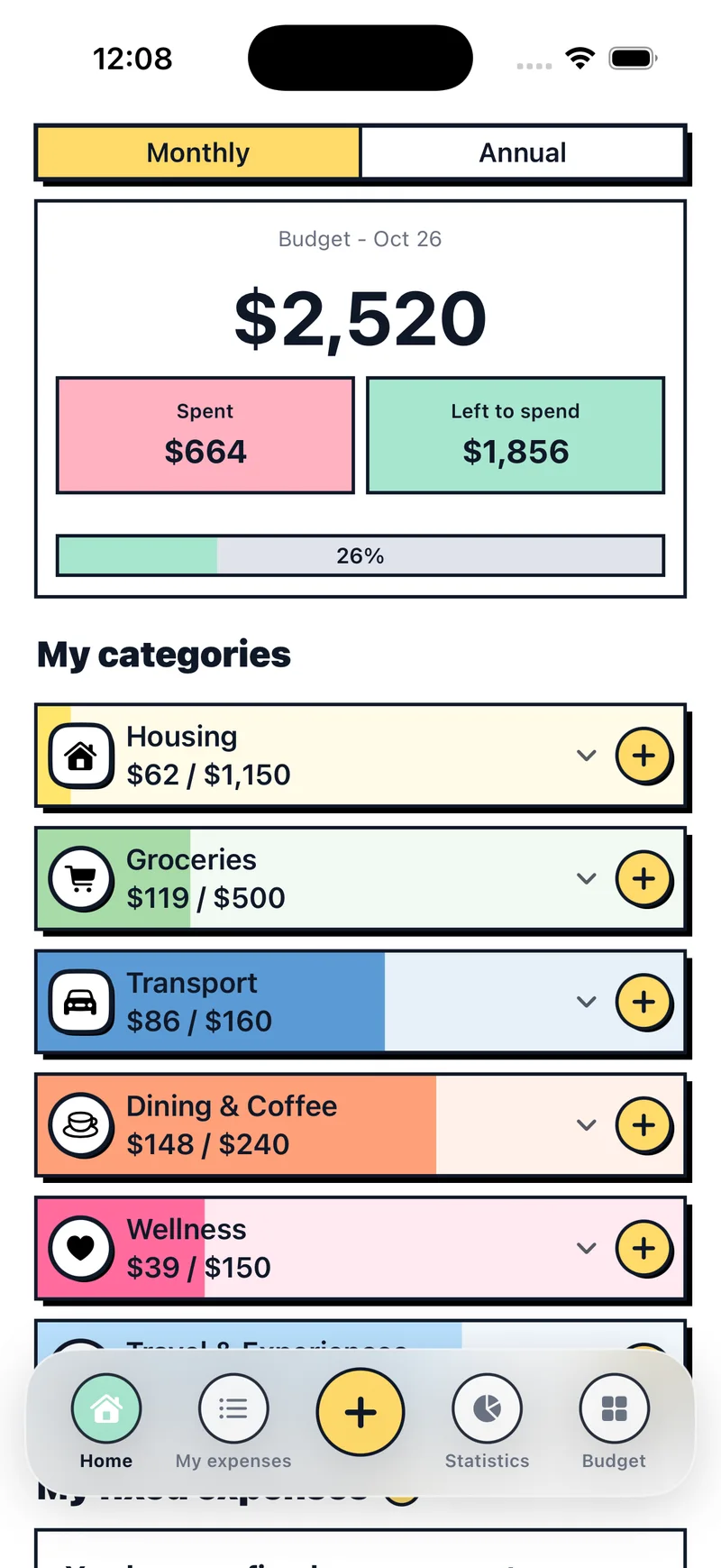
Tap the yellow + button in the bottom menu, type the amount and pick a category. You can also use the + on any category in Home.
If you need to do some math, use the operations on the keypad. The category bar updates as soon as you save.
Step 3: Add your fixed expenses
In Home, scroll down to My fixed expenses and tap Add recurring expense. Enter the name, amount, category and day of the month: rent on the 1st, gym on the 5th, and so on.
Each month, tap Mark paid, or Skip if it doesn’t apply that month.
Step 4: Review your expenses
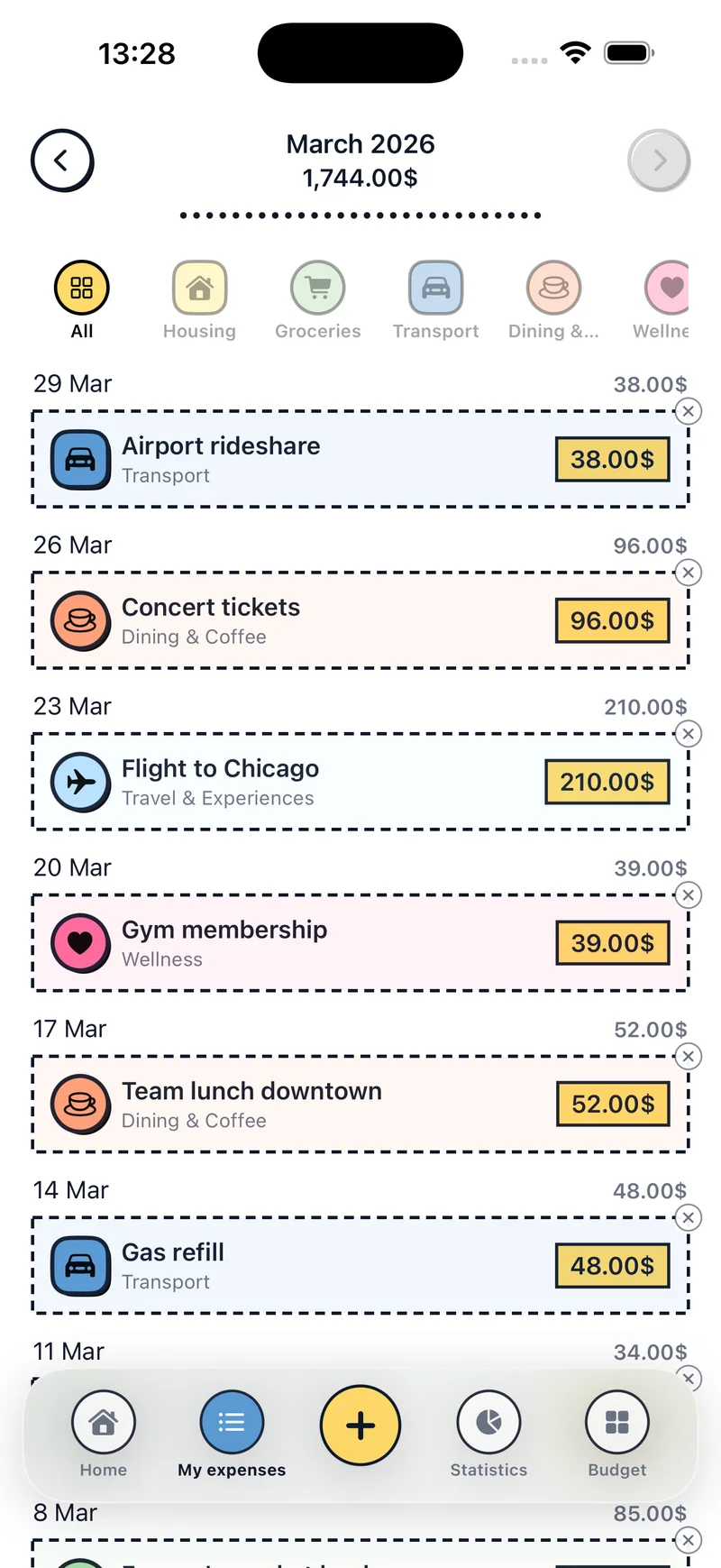
The My expenses tab shows the month’s history, organized by day. Use the arrows to change month and the icons at the top to see a single category.
Tap an expense to edit or delete it.
Step 5: Check your charts
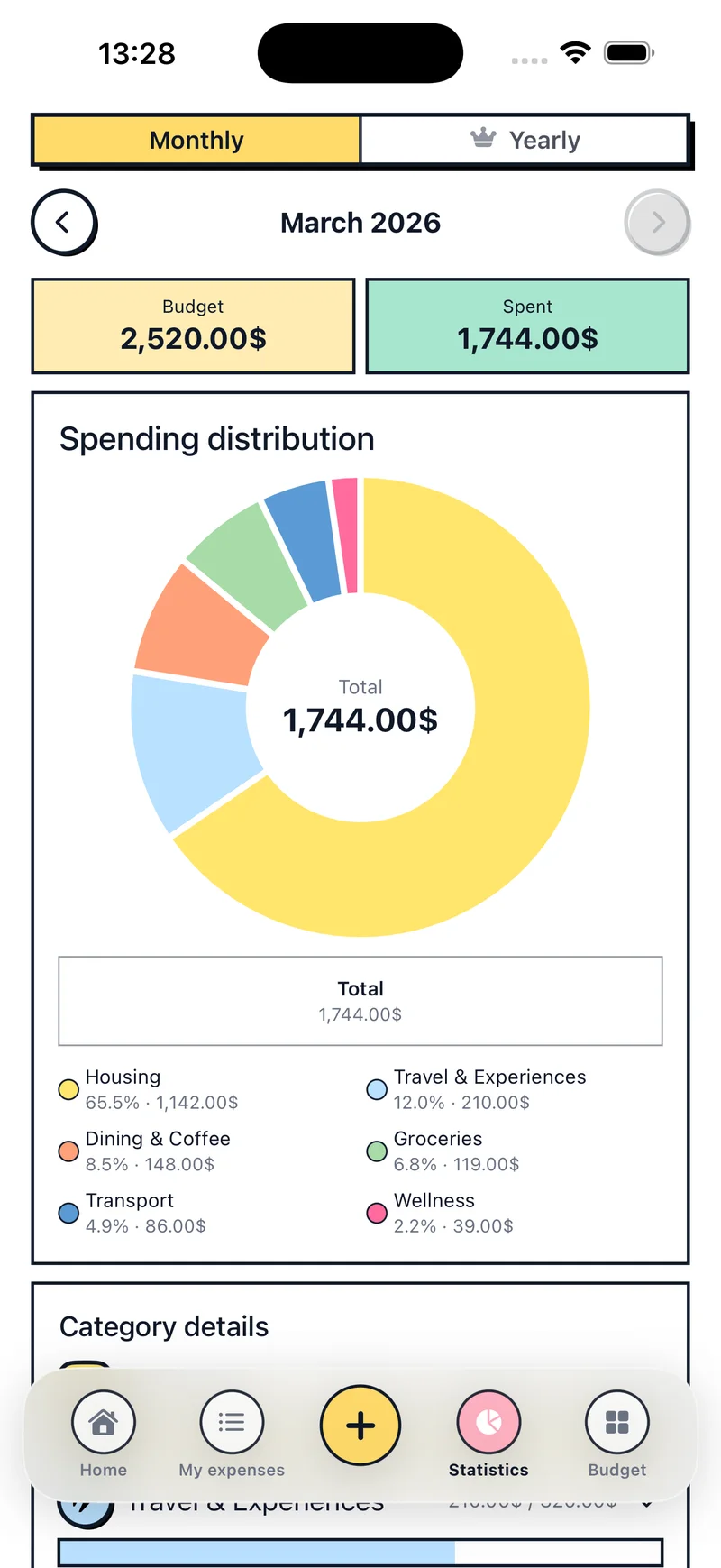
The Statistics tab compares your budget with what you’ve spent and breaks spending down by category. It’s the quickest way to see where to cut back next month.
Step 6: Switch to the annual view
At the top of Home there’s a Monthly and Annual switch. The annual view shows your budget and spending for the whole year, and the money you have left after the fixed expenses still to come before December.
Step 7: Add widgets and reminders
To add a widget, press and hold your iPhone’s Home Screen, tap Edit, choose Add Widget and search for Budget Pop. There are three: add expense, budget and categories.
Reminders are in the Budget tab, under the gear icon at the top right. Choose daily, weekly or monthly, and the time you’d like the nudge.
Common questions
If I change my budget, do past months change?
No. The new amount applies to the current month and the ones after it. Earlier months keep theirs.
How do I change the currency or language?
Go to Budget, tap the gear icon and open Settings, Language and currency.
What happens if I edit a category?
The name, icon and color change across the app, including your history. A new amount doesn’t change earlier months.
How do I delete an expense?
Open Home or My expenses, tap the expense and choose delete. If it was a paid fixed expense, only that month’s entry is removed.

Start your budget today
Download Budget Pop for free and log your first expense in a minute.